How to find and delete node_modules and build folders on a Mac
Every JavaScript project you've cloned has its own node_modules folder, and every Xcode, SwiftPM or Gradle project leaves build output behind. None of it is needed once you stop working on the project, and it adds up quickly.
Short answer
For node_modules alone, a find command in Terminal or npx npkill does the job. To clear node_modules, Xcode, SwiftPM and Gradle build folders in one pass, with a list you can check before anything is deleted, use Those Pesky Files.
Option 1: Terminal
First, see what you're dealing with. Replace ~/Projects with the folder that holds your code. This lists every node_modules folder with its size, without looking inside them:
find ~/Projects -name node_modules -type d -prune -exec du -sh {} +To delete them all:
find ~/Projects -name node_modules -type d -prune -exec rm -rf {} +rm -rf skips the Trash. Run the first command and read the list before you run the second.Xcode keeps build output in one shared place, separate from your projects. Quit Xcode, then check its size and clear it:
du -sh ~/Library/Developer/Xcode/DerivedData
rm -rf ~/Library/Developer/Xcode/DerivedData
This is fine for a one-off. The catch is that each command handles one folder name, and generic names are risky. A folder called build is safe to delete in a Gradle project and possibly important anywhere else, and find can't tell the difference.
Option 2: npkill
If you have Node installed, run this from the folder that holds your projects:
npx npkillIt lists every node_modules folder below that point with its size. Move through the list with the arrow keys and press Space to delete one. It's a good tool if JavaScript projects are all you have, but it won't help with Xcode or Gradle.
Option 3: Those Pesky Files
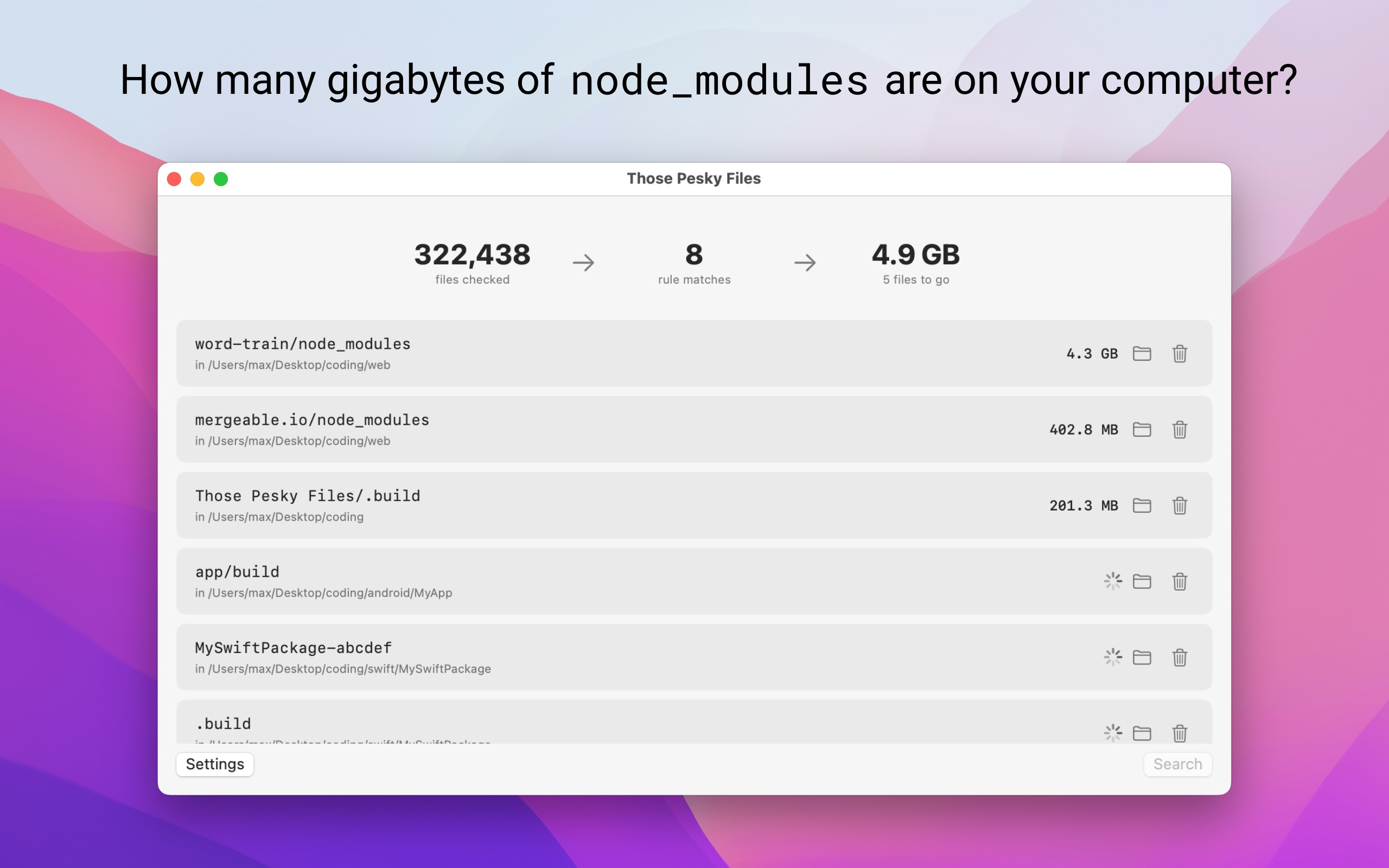
Those Pesky Files is a Mac app for exactly this job. It comes with rules for the usual suspects across Xcode, SwiftPM, Node and Gradle projects, and you can add your own.
- Open the app and choose a search location for the default rules, such as your code folder. The app can't see anything on your disk until you pick a folder, and it only ever looks inside the ones you choose.
- Add any rules of your own. A rule matches an exact name, like
node_modulesor.build, or a file extension. - Add a sibling condition where a name is too generic. For example, only match
buildwhenbuild.gradlesits next to it, or.buildwhenPackage.swiftdoes. - Run the scan. Matches appear with their size as they're found, and the total climbs while it runs.
- Reveal anything you're unsure about in Finder. When you're happy, select what you want gone, delete and confirm.
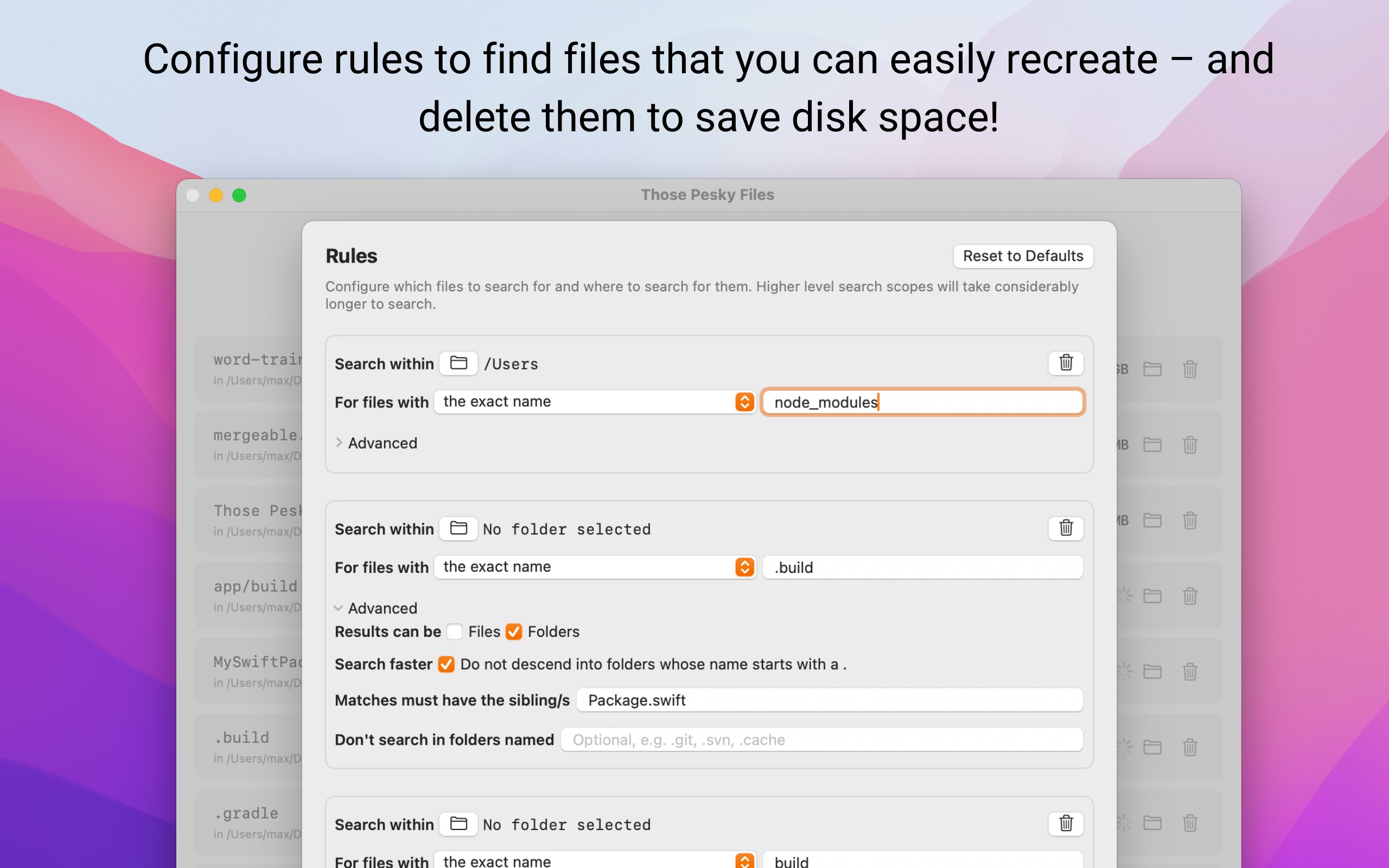
Sibling conditions are the main difference from a plain find. They turn a list you'd have to check line by line into one you can act on. Each rule can also skip folders like .git, skip hidden folders, and match only files, only folders, or both.
What's safe to delete
| Folder | Comes from | To get it back |
|---|---|---|
node_modules | npm, yarn, pnpm | npm install or your package manager's equivalent |
DerivedData | Xcode | Build the project again |
.build | Swift Package Manager | swift build, or build in Xcode |
build (next to build.gradle) | Gradle, Android | Build the project again |
All of these are rebuilt by your tools, but the next build or install of each project will take longer and may need a network connection.
Questions
Is it safe to delete node_modules?
Yes, for any project with a package.json. Run npm install (or yarn, or pnpm install) and the folder comes back. The exception is an old project whose packages can no longer be downloaded, such as one that relied on a private registry you have lost access to.
Is it safe to delete Xcode's DerivedData folder?
Yes. It only holds build products, indexes and logs. Quit Xcode first, and expect the next build of each project to take longer while Xcode recreates it.
Do deleted folders go to the Trash?
Not with rm -rf, and not with Those Pesky Files either. Both delete immediately, which is why it is worth reviewing the list before you confirm.
How much space will I get back?
It depends entirely on how many projects you have. Run the du command in this guide, or a scan in Those Pesky Files, and you will see the total before deleting anything.

US$3.99 · one-time purchase · requires macOS 14 or later