How to save a still frame from a video on iPhone
You filmed the moment, and now you want it as a photo. There are two ways to do that on an iPhone. One takes two seconds, and the other gives you a much better picture.
Short answer
For a quick share, pause the video and take a screenshot. If you want to print the photo, crop it or keep it, save the actual frame with an app like Photo Extractor. You get the full resolution the video was recorded at, without the black bars or playback controls.
Option 1: Pause the video and take a screenshot
- Open the video in the Photos app and play it.
- Pause near the moment you want, then drag along the strip of thumbnails at the bottom to get closer.
- Tap the video once to hide the playback controls. For a landscape video, turn your phone sideways first so it fills more of the screen.
- Take a screenshot. On an iPhone with Face ID, press the side button and volume up together. On an iPhone with a Home button, press the side (or top) button and the Home button together.
- Tap the preview in the corner to crop off any black bars, then tap Done and save it to Photos.
It works, and for a quick message it's fine. The problem is what you're actually capturing.
Why a screenshot looks worse than the video
A screenshot records your screen, not the video. If the video has more pixels than the area it's shown in, the extra detail is thrown away. A 4K video frame is 3,840 pixels wide. Watched upright on a 6.1-inch iPhone, that same video is squeezed into a space about 1,179 pixels wide, so a screenshot keeps less than a third of the width.
| Screenshot | Saved frame | |
|---|---|---|
| Resolution | Limited to your screen | Whatever the video was recorded at |
| Black bars | Often, then you crop | None |
| Playback controls | If you didn't hide them | Never |
| Picking the exact moment | Pause and hope | Step one frame at a time |
Option 2: Save the actual frame with Photo Extractor
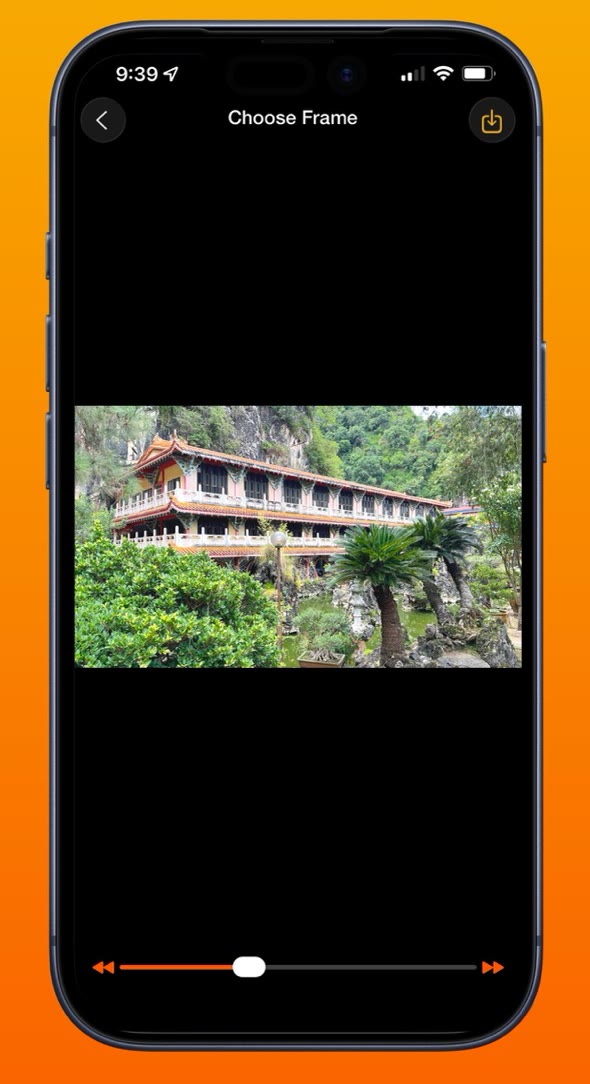
- Open Photo Extractor. Your library opens straight away, with videos and Live Photos ready to pick from.
- Tap the video you want.
- Drag the slider to get close to the moment.
- Use the step buttons to move forward or back one frame at a time until the shot is right.
- Tap save. The frame goes into your photo library as a new photo, at the resolution the video was recorded at.
Nothing gets imported or copied first, so you don't end up with a second copy of the video taking up space, and the original is left alone.
Tips for a sharper frame
- Look for a pause in the movement. Each video frame is exposed for a fraction of a second, so fast hands and turning heads blur. Step a few frames either side of the moment and there's often a sharper one.
- Skip the blinks. Faces change more between frames than you'd think. Stepping one frame at a time makes it easy to land on open eyes.
- Record in 4K if you'll want stills later. Go to Settings, then Camera, then Record Video. More pixels per frame means a bigger, sharper photo.
- Set your expectations. Your iPhone processes photos more heavily than video, so a frame won't quite match a photo taken at the same instant. For a moment you only caught on video, it's still far better than a screenshot.
Questions
Does saving a frame from a video lower the quality?
Not if you save the frame itself. You get exactly what the camera recorded for that moment. A screenshot is different: it captures the video as it appears on your screen, so it is usually smaller than the real frame and can include black bars or playback controls.
Will the original video be changed?
No. Both a screenshot and Photo Extractor add a new image to your photo library. The video stays exactly as it was.
Why is my saved frame blurry?
Usually motion. Video records every frame for a fraction of a second, so anything moving quickly smears a little. Step a few frames either side and you will often find one where the subject paused.
Can I do this on Android?
Yes. Photo Extractor is also on Google Play and saves stills from videos on Android in the same way.


US$0.99 · one-time purchase · iOS and Android