How to turn a Live Photo into a still photo on iPhone
A Live Photo is a regular photo plus a second and a half of movement either side. Sometimes you just want the photo. Other times the best moment is somewhere in that movement and you want that instead.
Short answer
To keep the main photo as a normal still, turn Live off or use Duplicate as Still Photo. To swap the main photo for a different moment, use Make Key Photo. To save several moments as separate photos, use an app like Photo Extractor.
Keep the photo you took, without the movement
Turn Live off. Open the photo in the Photos app, tap the Live menu in the top left corner and choose Off. The photo now behaves like any other still, and you can turn Live back on from the same menu.
Make a still copy. If you'd rather keep the Live Photo as it is, tap the More button (three dots), then Duplicate, then Duplicate as Still Photo. You end up with both.
Use a different moment as the main photo
- Open the Live Photo and tap Edit.
- Tap the Live Photo button (the circles icon) along the bottom.
- Drag through the strip of frames until you find the moment you want.
- Tap Make Key Photo, then Done.
Two things to know. A Live Photo can only have one key photo, so this replaces the cover rather than adding a new picture. And the new key photo comes from the moving part of the Live Photo, which is recorded at a lower resolution than the original photo, so expect it to be a little softer. You can always go back with Edit, then Revert.
Save several moments as separate photos
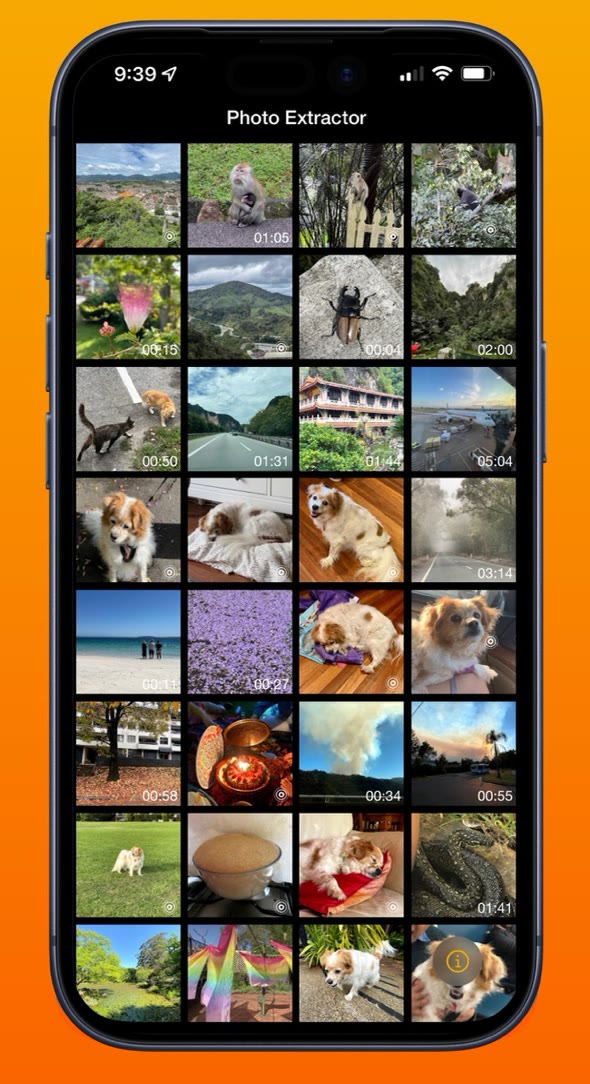
When there's more than one good moment, say a group shot where a different person blinks in each frame, you want each one as its own photo. Photo Extractor does that.
- Open Photo Extractor and tap the Live Photo in your library.
- Drag the slider to get close, then use the step buttons to move one frame at a time.
- Tap save. The frame is added to your library as a new photo.
- Move to the next moment and save again, as many times as you like.
The Live Photo itself isn't changed. The frames come from the same moving part that Make Key Photo uses, so the same resolution limit applies.
Which option to use
| You want to | Use | Quality |
|---|---|---|
| Keep the photo you took, just not moving | Live Off, or Duplicate as Still Photo | Full, it's the original photo |
| Swap in a better moment as the cover | Make Key Photo | Lower than the original |
| Save several moments as their own photos | Photo Extractor | Lower than the original |
Questions
Why does a different frame look softer than the original Live Photo?
The moving part of a Live Photo is recorded at a lower resolution than the main photo. Any other moment you pick comes from that moving part, whether you use Make Key Photo or another app, so it will never be quite as sharp as the photo you originally took.
Does turning Live off delete the movement?
No. The photo just shows as a still. Choose Live from the same menu and the movement comes back.
Can I stop my iPhone taking Live Photos?
Yes. Tap the Live Photo button in the Camera app so it has a line through it. To keep it off next time you open the camera, go to Settings, then Camera, then Preserve Settings, and turn on Live Photo.
Can I save more than one moment from the same Live Photo?
Not with the Photos app, which only lets a Live Photo have one key photo. Photo Extractor saves each frame you pick as its own photo, so you can take as many as you like and the Live Photo is left untouched.


US$0.99 · one-time purchase · iOS and Android